


Curiosity for builders: a new admin experience
 The Curiosity Team
Curiosity has always been a framework for building custom knowledge graph solutions — a platform you build on, not just configure. Endpoints, AI tools, data connectors, agents: all designed to be extended and shaped to fit a specific use case.
As we grow, more SI partners and enterprise customers are building solutions directly on the platform. More developers, more teams, more complexity. We wanted to make it even easier to build with confidence — so we completely rebuilt the admin. Here's what's new.
Navigation built around roles
The admin now has a persistent navigation rail with eight sections: Home, Operate, Build, Data, AI, Access, Configure, Shell.
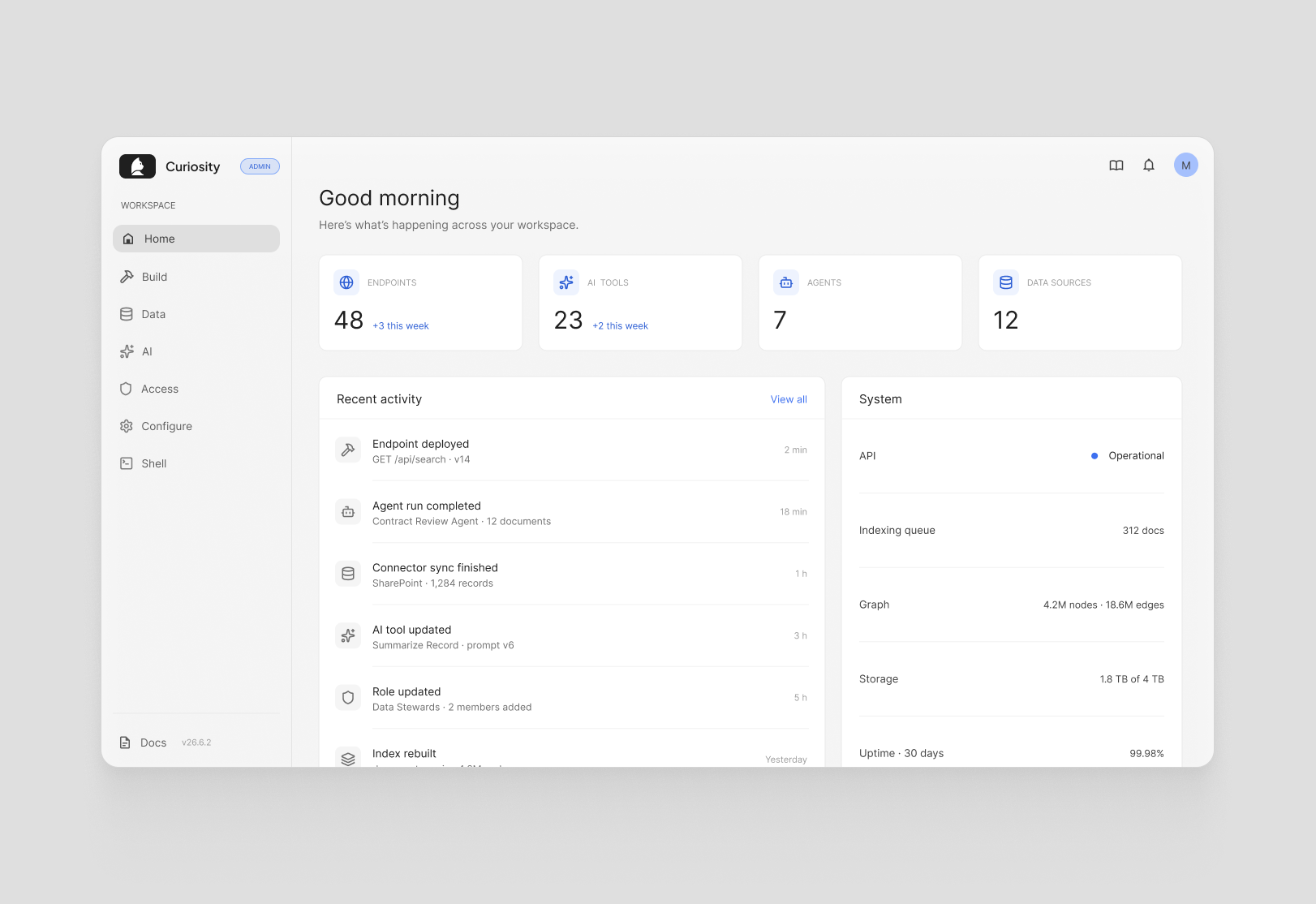
Each maps to a distinct kind of work. Operators use Operate. Developers use Build. Data stewards use Data. Access control has its own section. Every section is one click from anywhere in the admin — no sub-menus, no hunting through a flat sidebar, no losing your place. As more people work across the platform, whether they're on our team, a partner's team, or a customer's internal team, everyone can find their section immediately and get to work. The structure also makes it much easier to hand off specific parts of the admin to the right people without confusion.
A proper IDE for building
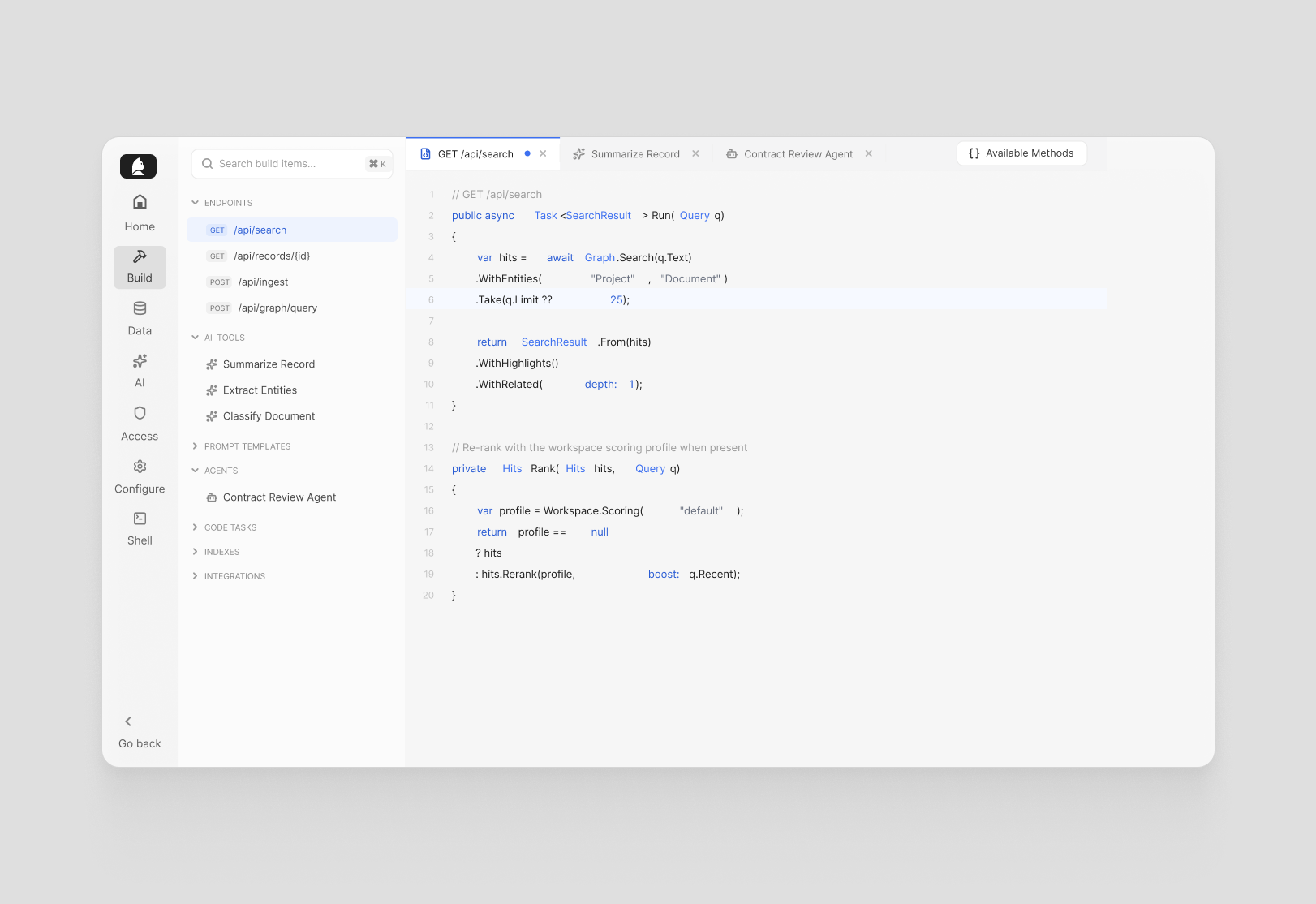
The biggest change is in Build, which has been completely redesigned as an IDE-style environment.
Everything a developer works on — endpoints organized by URL path, AI tools, prompt templates, agents, code tasks, indexes, integrations — lives in a collapsible file tree on the left. Click anything and it opens in a tab on the right. Multiple tabs open at once, Ctrl+Tab to switch between them, and an unsaved-changes indicator on each tab so nothing disappears quietly. Working on an endpoint while keeping an AI tool open in another tab is now just how it works.
Tab state is encoded in the URL. Reload and your tabs come back exactly as you left them. Share the link with a colleague and they land in exactly the same view — the same tabs, the same context. When teams are spread across partners, customers, and time zones, that kind of shared context saves a lot of back-and-forth.
The admin AI assistant tracks whichever tab is active and updates its context automatically. When you ask it something, it already knows what you're working on — no need to explain where you are or paste in code.
Live search filters the entire tree across names, descriptions, and code content. A command palette gives keyboard-first access to every item across all categories. For anyone spending serious time building inside Curiosity, it's fast in a way the old interface simply wasn't.
Sandbox mode in the Shell
The Shell — where admins run queries and scripts directly against the graph — now has a sandbox mode.
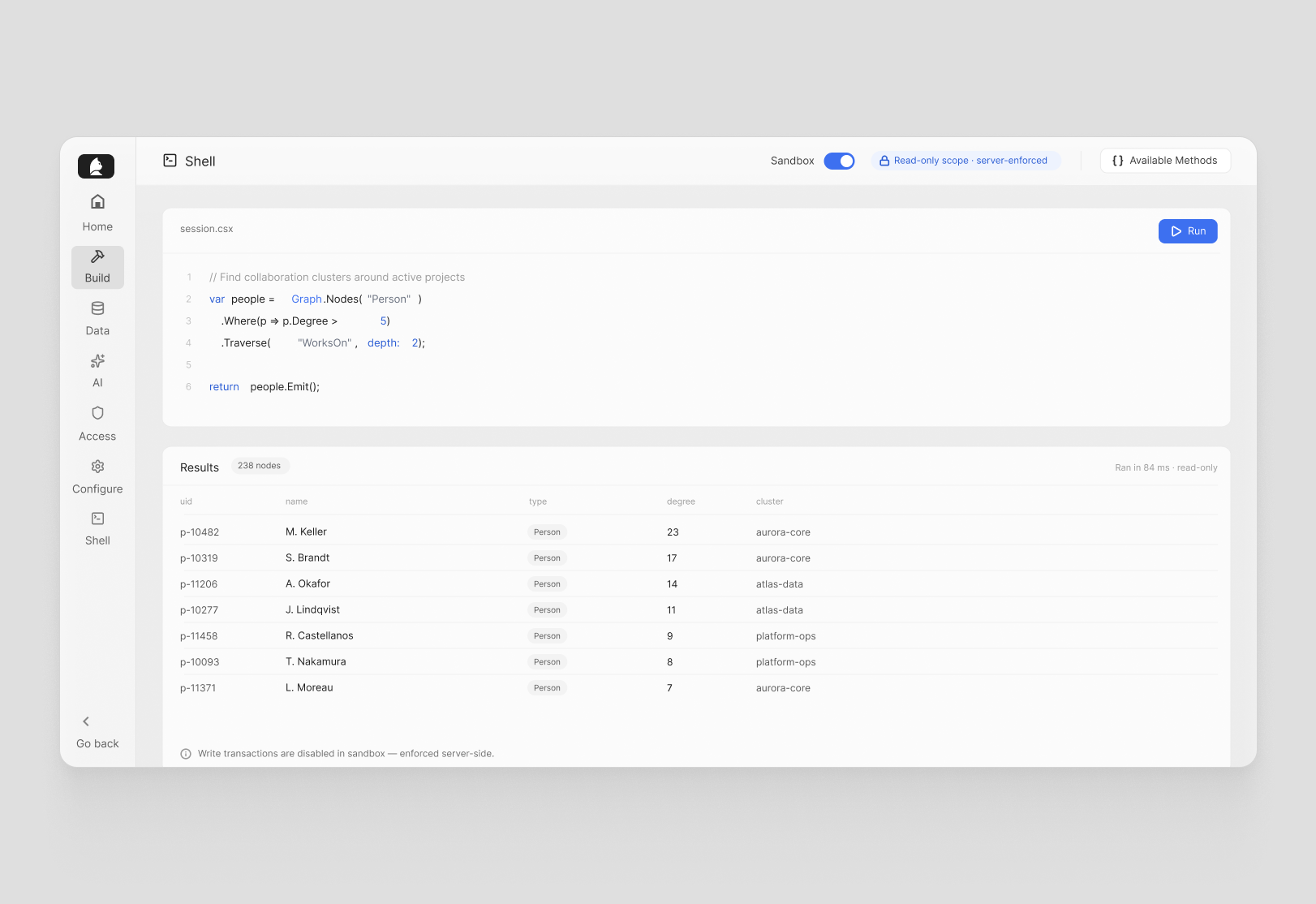
Flip it on and the execution scope becomes read-only server-side: no write transactions, only read-only endpoints. The Available Methods panel updates automatically to show only what's callable in that scope. It's the same Shell, the same queries, just with a server-enforced guarantee that nothing can be accidentally changed. Useful when exploring live production data, demonstrating something to a stakeholder, or onboarding a new team member who needs to find their feet without risk.
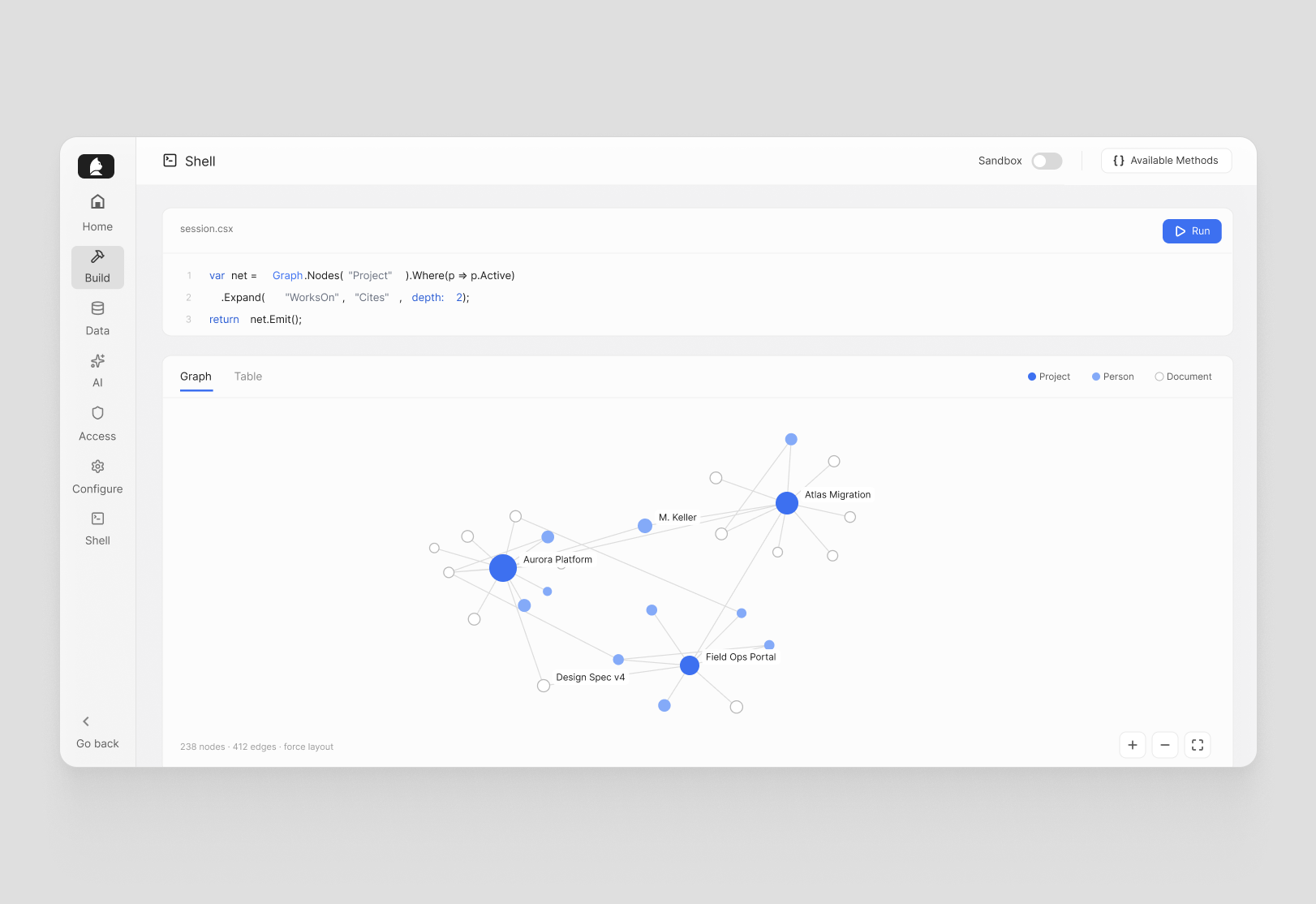
The Shell also now renders query results as an interactive force graph. Write a traversal, emit nodes, and instead of parsing rows in a table you see the network directly — which nodes connect to which, and how the graph is actually structured. It's a much faster way to validate data, spot unexpected relationships, and understand what's in your graph at a glance.
Available Methods, always in reach
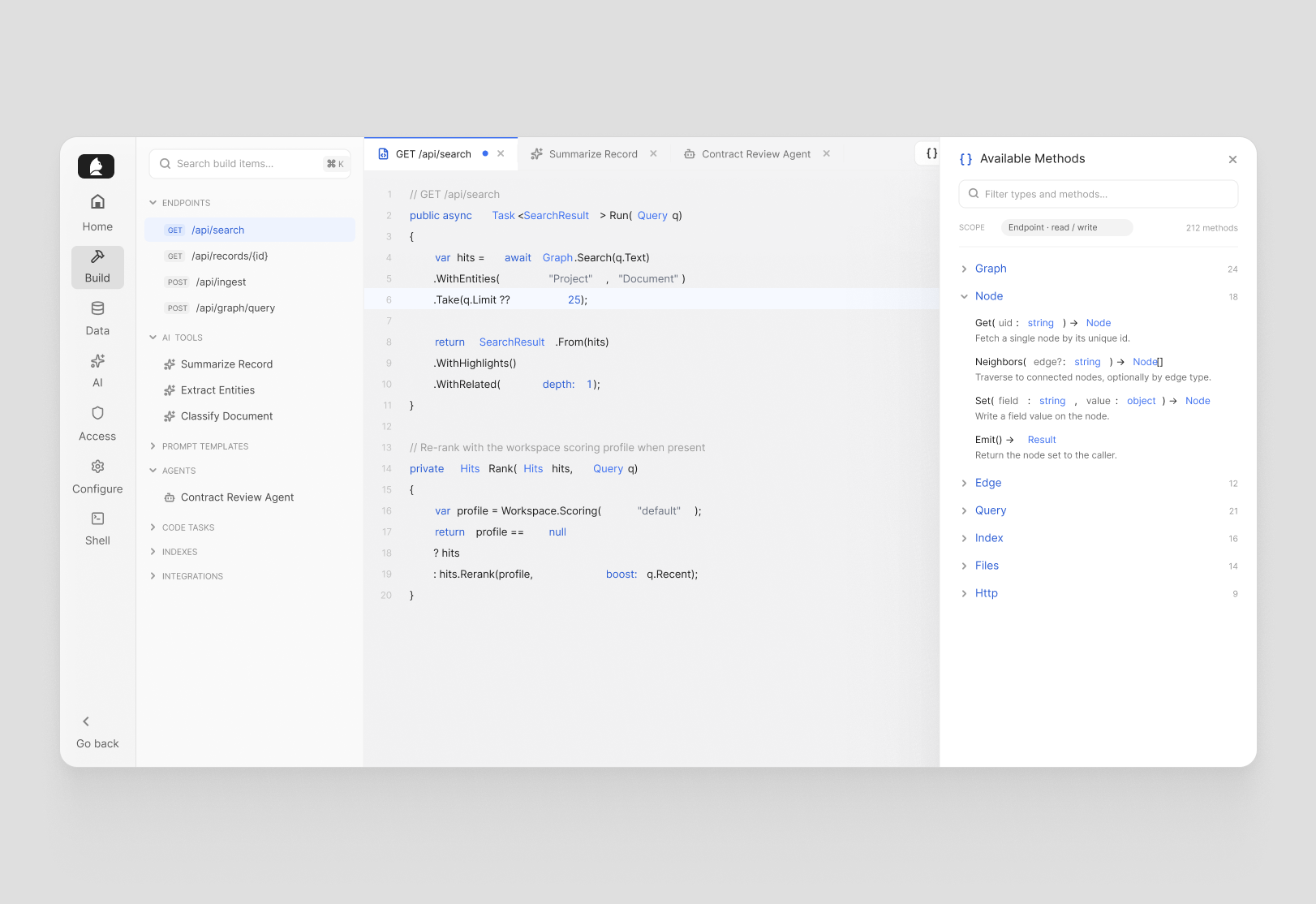
Every code editor in the admin now has an Available Methods button — in the Shell, the Build IDE, the AI tool editor, everywhere.
Click it and a panel slides in showing the complete API surface available in that execution context: every type, every method, with documentation generated directly from the runtime so it's always accurate and never out of date. Type names are clickable — select one and get full member documentation inline, right there in the panel. No switching to external docs, no guessing at method signatures. Everything you need to write confident code is one click away from wherever you're working.
Built for the teams building on Curiosity
We're at an exciting point. More teams than ever are using Curiosity as the foundation for real solutions — partners, customers, and internal teams tackling genuinely complex problems. We want the builder experience to be as good as the platform itself, and this is a significant step in that direction. There's more coming.
If you're building on Curiosity, the developer docs are a good place to start. Or get in touch. We'd love to hear what you're working on.